Does WalletPro work without internet?
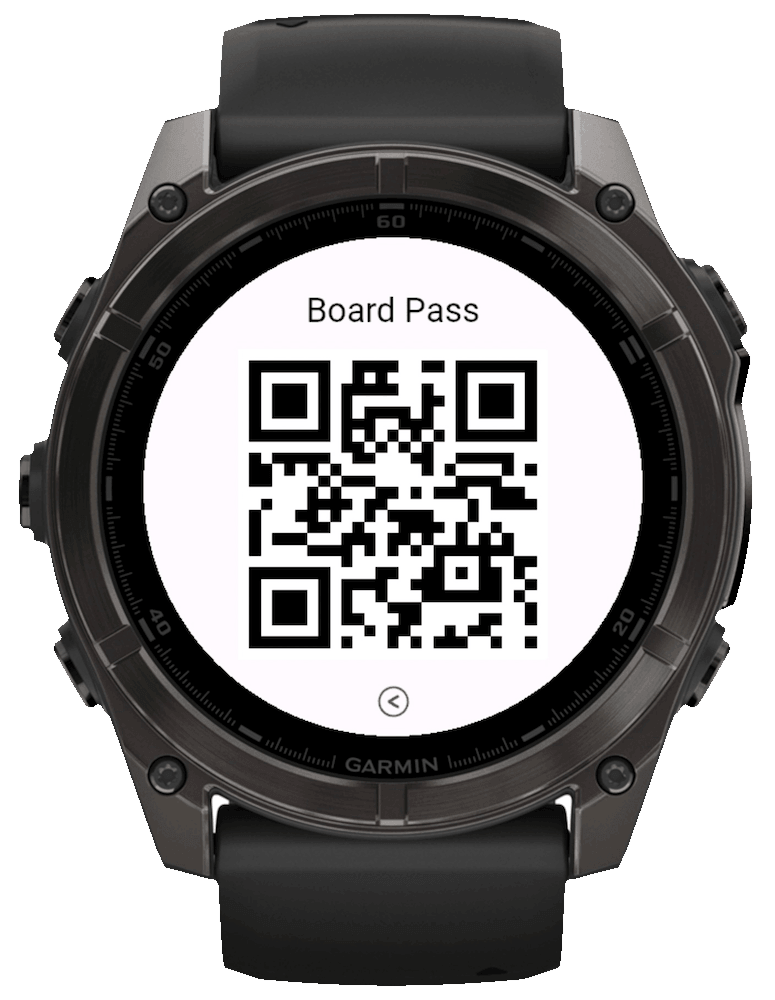
Yes. After settings sync, WalletPro reads card data from local device app storage and generates QR, barcode, Note, and TOTP/OTP views directly on the device.
Does WalletPro update codes from retailer apps?
Some retailers show a dynamic QR code or barcode in their official app. It may change when opened or after a short time. WalletPro does not sign in to retailer systems or retrieve or refresh these tokens; it only displays the static data you saved. If the official code changes, use the retailer's app—a saved copy may stop working.
Before adding a card, check the retailer's official app, website/help page, or physical card. Confirm both the original code format and its decoded content. A printed number or its length may differ from the data inside the QR code or barcode. If needed, use a reader that shows both the format and decoded text. Compare the data, not the appearance of the QR image. Even a correctly generated code works only if the retailer accepts that static data.
Can I add cards from the watch?
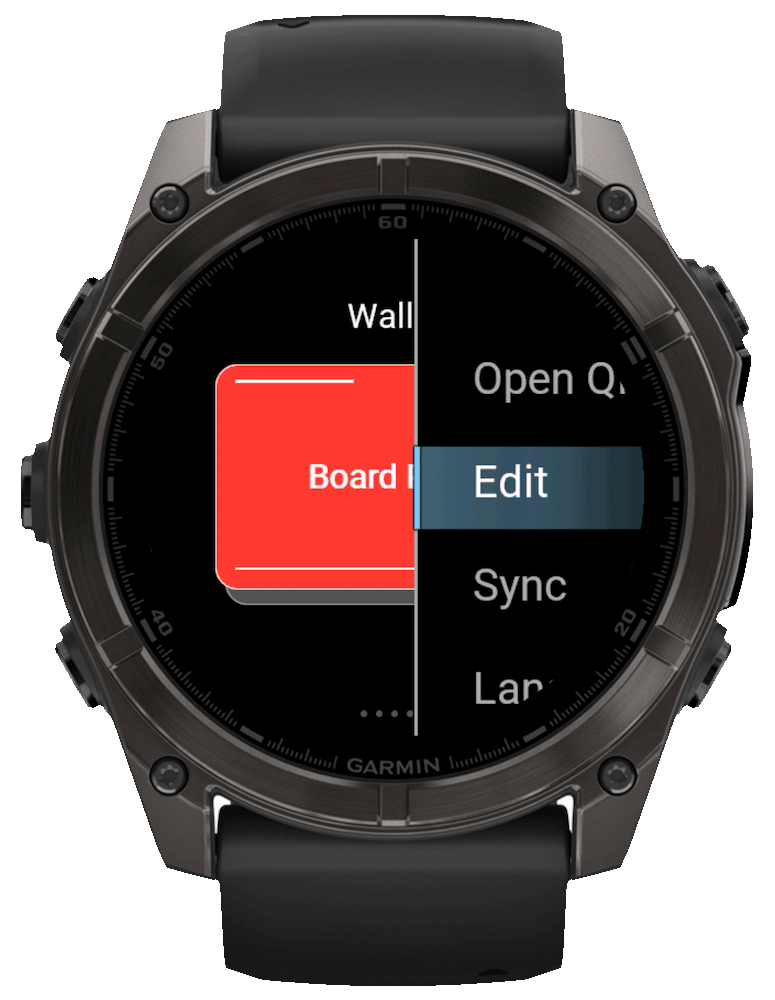
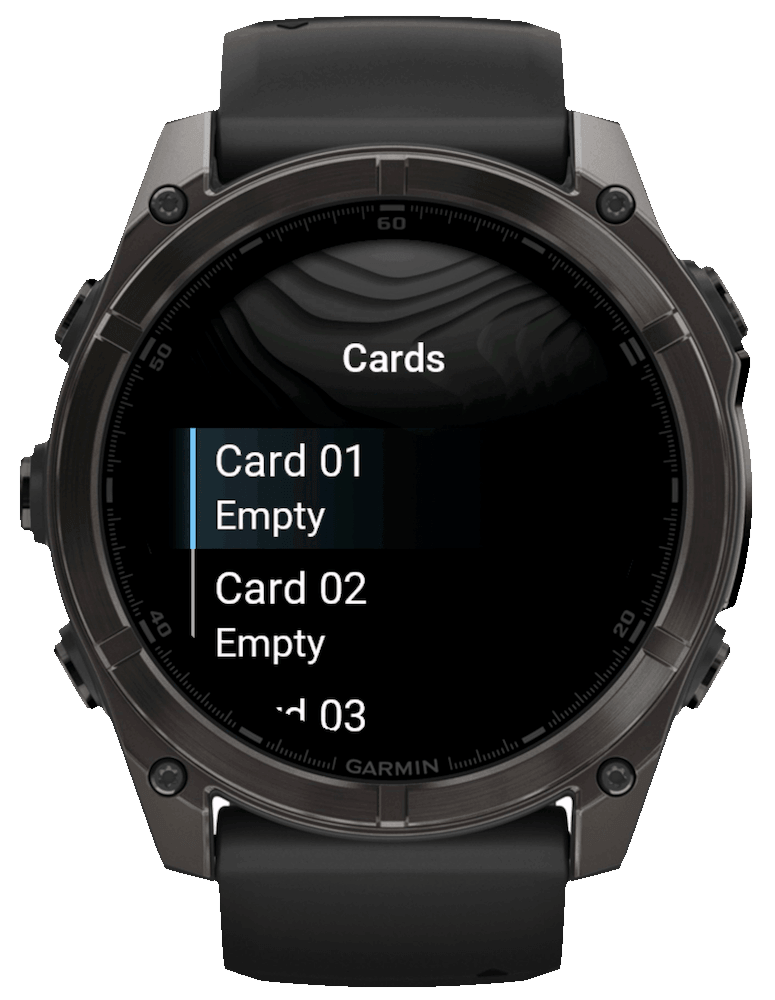
Hold UP/MENU, or long-touch the wallet list on a touchscreen, to open the action menu. Choose Add or Edit, select a slot, change Name, Type, Value / Secret, and Color, then choose Save.
What card types does WalletPro support?
QR: Use the exact decoded text from the original QR code. Do not paste a screenshot or shorten a printed number. Code 128: Use for a linear barcode containing general text or digits when the original format is Code 128. Aztec: Use only when the original ticket or card uses the square Aztec format. EAN-13: Enter 12 digits, or 13 digits with a valid check digit. A 16-digit card number is not EAN-13. Code 39: Use the uppercase Code 39 character set only when the original barcode is Code 39. UPC-A: Enter 11 digits, or 12 digits with a valid check digit. Note: Store short readable text such as a locker number, door code, or reference number. 2FA: Enter the Base32 secret or the full otpauth URI from the service. WalletPro generates TOTP/OTP codes locally.